
DailyAlbum: One Photo a Day
Keep one photo a day as a simple photo diary and memory calendar, with notes, widgets, Frame Mode, and free optional iCloud sync.
Overview
DailyAlbum keeps a small, steady photo record without turning it into a photo management task. Open a date, choose one photo that captures the day, and the daily choices grow into a memory calendar.
It fits family life, kids growing up, pets, trips, plants, creative projects, and ordinary days worth remembering. Empty days can even fill themselves: DailyAlbum quietly suggests one good photo, favoring people and pets and skipping screenshots and document shots, with all processing done on the device.
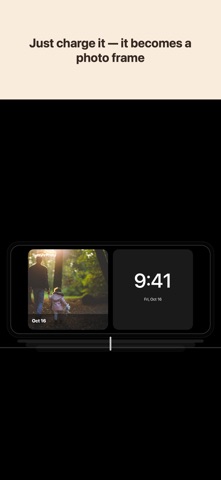
Each day can hold a note of up to 300 characters, and you can search notes later to find a day again. Frame Mode shows today's photo full screen with its date and note, so a spare iPad or an old iPhone can work as a family photo frame. With the optional DailyAlbum Family subscription, invited family can view your days like a photo frame in their own home.
Full details, guides and the video are on the app's own site: https://dailyalbum.app/
Who It Is For
- Parents and families who want a gentle daily photo habit for kids, pets, and everyday moments
- People who want to remember ordinary days privately, without posting to social feeds
- Travelers and hobbyists who want one representative photo per day
- Anyone who wants a widget or a photo frame at hand to revisit saved days
Main Features
- One-photo-a-day memory calendar, with a monthly album replay at the start of each month
- On-device photo suggestions that can fill empty days automatically
- Notes up to 300 characters per day, with note search
- Frame Mode: today's photo full screen with its date and note
- Share any day as a card with its photo, date, and note
- Home Screen widget and gentle 'on this day in past years' notices
- Free optional iCloud sync that restores your records after a phone change or reinstall
- Optional DailyAlbum Family subscription: invited family view your days, view-only and free for them
How to Use
- Install DailyAlbum from the App Store.
- Open a date and choose one photo that captures the day.
- Add a short note if you want (up to 300 characters per day).
- Turn on iCloud Sync (free, optional) so your records survive a new phone or a reinstall.
- Add the widget or use Frame Mode to revisit saved days without opening the app.
- Share a favorite day as a card - photo, date, and note - whenever you choose to.
Pricing
The core app is free: the calendar, photo picking, notes, note search, and iCloud Sync. DailyAlbum Plus is a one-time purchase (not a subscription) that adds DailyAlbum Archive, unlimited Frame Mode, unlimited monthly album replays, and multi-device sync. DailyAlbum Family is an optional auto-renewing subscription (monthly or yearly) that lets invited family view your days; viewing is always free for them, and all Plus features are included while it is active. See the App Store for current prices and availability.
Privacy
No account is required. Photos are processed on your device and are not sent anywhere by default. With iCloud Sync on (free), only your day choices and notes are stored in your personal iCloud. Only if you turn on photo sync (DailyAlbum Plus) or family sharing (DailyAlbum Family) is a copy of the photo you chose stored in your own iCloud, where the developer cannot read it. Full policy: https://dailyalbum.app/privacy/
Screenshots



FAQ
What is DailyAlbum for?
DailyAlbum keeps a one-photo-a-day record of everyday life, family moments, trips, hobbies, and projects, arranged as a memory calendar you can revisit.
Is DailyAlbum a full photo library manager?
No. DailyAlbum focuses on choosing and remembering one photo per day. It does not replace the Photos app or a full album system.
Does DailyAlbum post my photos publicly?
No. There is no social feed and nothing is published automatically. When you want to share a day, you create a card with the photo, date, and note, and share it yourself.
How much of DailyAlbum is free?
The calendar, photo picking, notes up to 300 characters, note search, and iCloud Sync are free. DailyAlbum Plus, a one-time purchase, adds DailyAlbum Archive, unlimited Frame Mode, unlimited monthly album replays, and multi-device sync. DailyAlbum Family is an optional subscription for sharing with family and includes all Plus features while it is active.
Where are my photos stored?
DailyAlbum uses photos from your iPhone photo library. When you choose a photo for a day, DailyAlbum remembers which photo you chose — it does not copy the photo itself. If the original is deleted from the Photos app, DailyAlbum may no longer be able to show it, unless it was saved with DailyAlbum Archive. When iCloud Sync is on, your choices and notes are stored only in your personal iCloud.
Will my records survive a new iPhone?
Yes, if you turn on iCloud Sync. iCloud Sync is free for everyone. Its purpose is simple: your photo choices and notes exist only in DailyAlbum, so this keeps them safe when you switch phones or reinstall the app. How to use it: open Settings, and under iCloud Sync turn on "Sync choices & notes" (you need to be signed in to iCloud). On a new iPhone, turn it on again and your records come back. Everything is stored only in your personal iCloud — photos themselves are never uploaded; they follow your photo library transfer, such as iCloud Photos.
Does restore happen automatically?
If your new iPhone was set up from a backup or Quick Start, iCloud Sync stays on and your records reconnect automatically — nothing to do. After a fresh install, turn iCloud Sync on once in Settings; everything after that is automatic, and there is no separate restore button. This works whenever your records are gone from the device but still in your iCloud: a new phone, a reinstall, or a reset device.
What's the difference between the two iCloud Sync options?
iCloud Sync keeps your day choices and notes safe in your personal iCloud, so they survive a new phone or reinstall and appear on your other devices — for free. The photos themselves aren't uploaded; each device shows them from its own photo library. If you use iCloud Photos, that's usually all you need: the photos you keep are already on your other devices, so even a spare iPad can become a photo frame at no extra cost. If you don't use iCloud Photos, turn on Sync this day's photo (DailyAlbum Plus). For a little iCloud storage, DailyAlbum keeps a private copy of each day's photo in your own iCloud, so your days still appear on your other devices — and an old iPhone or iPad can become a family photo frame. Only you can open them; the developer cannot read your data.
What happens if I delete a photo from Photos?
If you delete the original photo from the Photos app, it may no longer be available in DailyAlbum. Photos saved with DailyAlbum Archive will still be shown.
What is DailyAlbum Plus?
DailyAlbum Plus is a one-time purchase that adds four things: DailyAlbum Archive (saves a copy of each day's chosen photo inside DailyAlbum), unlimited Frame Mode (the free version has a 5-minute preview), unlimited Monthly Recap replays (the free version includes one full playback), and multi-device sync (your choices and notes appear on your other devices right away). Photos are shown from each device's own photo library (such as iCloud Photos). By default DailyAlbum does not upload your photos. If you turn on Sync this day's photo, DailyAlbum also keeps a small copy of each chosen photo in your personal iCloud so it can appear on devices that don't use iCloud Photos — only you can open it, and the developer still cannot read your data. Your calendar, photo picking, notes, and iCloud Sync stay free.
What is DailyAlbum Family?
DailyAlbum Family is an optional auto-renewing subscription (monthly or yearly). Invited family can view your days in DailyAlbum - one photo per day, like a photo frame in their home. You choose what to share: all daily photos, or only days with a tag you pick. It is view-only and always free for the family you invite, and all Plus features are included while the subscription is active. Manage or cancel it anytime in your Apple Account settings.
What is DailyAlbum Archive?
DailyAlbum Archive is a DailyAlbum Plus feature that saves a copy of the photo you chose for each day inside DailyAlbum. Even if the original is later deleted from your photo library, DailyAlbum can still show the saved copy. It also makes browsing steadier and faster: archived copies display instantly, even when the original lives in iCloud and would otherwise need to download first. You can choose whether auto-picked photos are saved too. You can see everything that's been saved in Settings > Archived photos.
Does DailyAlbum Archive copy my entire photo library?
No. DailyAlbum Archive saves only the daily photos you choose so they can be displayed more reliably inside the app. If DailyAlbum is deleted or the device is erased, photos saved only inside DailyAlbum may also be lost.
What do the star and sparkles icons mean?
The star means you picked the photo yourself. The sparkles mean DailyAlbum suggested or picked the photo automatically for that day.
How does DailyAlbum pick photos automatically?
Auto-pick only fills days that are still empty — it never replaces a photo you chose. It looks for photos with people or pets, and skips videos, screenshots, and shots that look like documents or receipts. If a day has only that kind of photo, the day stays empty on the calendar and you can pick one yourself. Everything is analyzed on your device; nothing is uploaded. To change an auto-picked photo, open the day and choose another — the sparkles turn into a star.
Can I use an iPad or old iPhone as a photo frame?
Yes. Open Frame Mode to show your chosen photo full screen with its date; the controls fade away after a few seconds, leaving just the photo. Stand an iPad or a spare iPhone on a shelf and it becomes a family photo frame. The free version plays for 5 minutes at a time; DailyAlbum Plus removes the time limit. With Plus multi-device sync, a photo you pick on your phone appears on the frame right away.
Can I search my notes?
Yes. Open your saved days and use the search bar to find a note by a word you wrote. This is free for everyone.
What's the difference between notes and tags?
A note is a short text shown together with the photo — on the day screen, in Frame Mode, and on share cards. Tags are short labels, like a family member's name, that are not shown on the photo; they work behind the scenes for search and for choosing which photos Frame Mode shows. Once you create a tag it is saved, so next time you can add it with one tap instead of typing it again. You can see, rename, and delete all your tags in Settings > Tags.
Can I share a day or a month?
Yes. From a day, tap the share button to create a card with that photo, its date, and note. After a monthly album plays, you can share the whole month as a single card too. Sharing happens through the normal share sheet — nothing is posted automatically, and DailyAlbum never uploads your photos in the background.
How do I restore my purchase?
If you bought DailyAlbum Plus before — on another device or after reinstalling — open Settings > DailyAlbum Plus and tap Restore Purchases. Make sure you're signed in with the same Apple Account you used for the purchase.
Why does the widget show a different photo depending on the widget size?
Each widget size can have its own selected photo. For example, the small, medium, and large widgets may each show a different photo because they are managed separately. If you want the same photo to appear, please set or update the photo for each widget size.
Why can I keep only one photo per day?
DailyAlbum is designed around choosing one meaningful photo for each day. Keeping one photo makes your calendar simple, easy to look back on, and focused on the photo that best represents the day.
Why do photos sometimes take time to load?
DailyAlbum reads photos available on your device. Loading may take a little time when there are many photos to show, when the image is large, or when the app is opening that day’s photos for the first time.