
OCR Copy: Image to Text
Image to text: batch-scan up to 20 photos or screenshots, or use the camera, and copy the text on your iPhone.
Overview
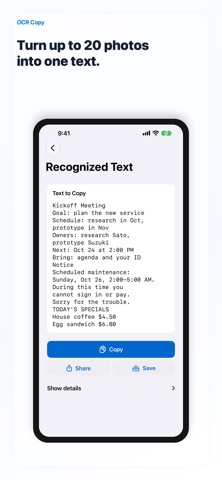
OCR Copy is a local-first OCR utility for quickly copying text from images and the real world. Select up to 20 photos or screenshots at once and the app reads them in order, combining the text into one result. You can also use Scan Live, take a photo, or tap Share from Photos or right after a screenshot, and the text is copied to your clipboard as soon as it is read — receipts, books, packages, screenshots, signs, and other everyday text.
Instead of a heavy document manager or a cloud OCR service, OCR Copy keeps the job small and private: read text, copy it, done. Recognition runs on your iPhone with Apple Vision, and photos and text are never sent to a server. When recognition isn't perfect, you can fix or delete individual lines before copying, and confidence values and text positions are available as optional detail information. If an image contains a table, you can export it as a CSV file, row by row (iOS 26 or later), and the Shortcuts action "Read Text in Image" gives you the text of images.
Saved text stays on your device so you can come back and copy it again later. Auto detection reads your device's language first, and you can also choose the OCR language: Japanese, English, Korean, Chinese, European languages, Russian, Ukrainian, Thai, and Vietnamese. OCR Copy is free to read up to 5 times a day, and OCR Copy Pro removes that daily limit.
Who It Is For
- People who frequently retype text from receipts, packages, books, or paper documents
- Users who want to grab text from screenshots and photos, even many at once, without a cloud service
- Anyone dealing with multilingual text who needs selectable OCR languages
- People who want to turn a table in an image into a CSV file
- Privacy-conscious users who don't want their photos or text sent to a server
Main Features
- Batch: select up to 20 photos or screenshots and get one combined text, in the order you picked them
- Share to OCR Copy: in Photos or right after a screenshot, tap Share and get the text on the spot
- Tables to CSV: export a table in an image as a CSV file, row by row (iOS 26 or later)
- Shortcuts: the "Read Text in Image" action gives you the text of images
- Scan Live: point the camera and copy the text you see, or take a photo and copy its text
- On-device text recognition with Apple Vision — works offline, no server involved
- Fix or delete individual lines before copying
- Save recognized text locally and copy it again later
- OCR language: Auto reads your device's language first, or choose Japanese, English, Korean, Chinese, European languages, Russian, Ukrainian, Thai, or Vietnamese
- Optional detail view with confidence values and text-position overlays
- Free: 5 reads a day. OCR Copy Pro (yearly with a 1-week free trial, or monthly) removes the daily limit
- App available in 25 languages
How to Use
- Open OCR Copy and choose photos or screenshots (up to 20 at a time), live scan, or camera capture. You can also tap Share in Photos or right after a screenshot and choose OCR Copy.
- Let the app read the text on your device. The text is copied to your clipboard as soon as it is read.
- Paste it into notes, messages, or search with one tap.
- If needed, tap a line to fix or delete it before copying.
- Save the text to review and copy again later from the Home screen, or export a table as CSV.
- If text isn't reading well, change the OCR language or accuracy in Settings.
Pricing
OCR Copy is free to download and read up to 5 times a day. OCR Copy Pro, an auto-renewing subscription (yearly with a 1-week free trial, or monthly), removes the daily limit in the app, the share sheet, and Shortcuts. Copying, saving, and CSV export never count toward the limit, and if you used OCR Copy before version 1.5, reading stays unlimited. See the App Store listing for current prices and details.
Privacy
OCR runs entirely on your iPhone with Apple Vision, works offline, and photos and text are never sent to a server. Recognized text, line corrections, confidence values, and thumbnails are stored locally in the app. There is no account, no ads, and no tracking. Sharing text is always user-initiated through the iOS share sheet. Subscription purchases are handled by the App Store and your Apple Account.
Screenshots


FAQ
Is OCR Copy free?
It is free to download and lets you read text up to 5 times a day. OCR Copy Pro, an auto-renewing yearly (with a 1-week free trial) or monthly subscription, removes the daily limit. If you used OCR Copy before version 1.5, reading stays unlimited. Check the App Store listing for current prices.
What does OCR Copy Pro add?
It removes the daily limit of 5 reads in the app, the share sheet, and Shortcuts. Copying, saving, and CSV export never count toward the limit, and the count starts over at midnight.
Are my photos or text uploaded anywhere?
No. Text recognition runs on your iPhone with Apple Vision, and photos and text are never sent to a server. There is no account, no ads, and no tracking.
Can I read many images at once?
Yes. Select up to 20 photos or screenshots and OCR Copy reads them in the order you picked them and combines the text into one result.
What languages can it read?
Auto reads your device's language first. You can also choose Japanese, English, Korean, Chinese, European languages, Russian, Ukrainian, Thai, or Vietnamese. The app itself is available in 25 languages.
What if the OCR result has mistakes?
You can fix or delete individual lines before copying. Lines with low confidence are flagged for review when detail display is enabled.
Can I save text and come back to it later?
Yes. Saved text is stored locally on your device and appears on the Home screen, where you can reopen and copy it again anytime.
Does it read handwriting or vertical Japanese text?
The app targets printed text in photos and camera shots. Vertical Japanese text and complex layouts may not be read correctly.
Do I need camera access?
Camera access is needed for live scan and camera capture, but you can also pick existing images from your photo library or share them to OCR Copy.